Incomplete loading
Check your connection and return to the lobby. If the problem repeats, note the title, browser, and error message for support. Do not install files from a third-party page to fix a failed load.
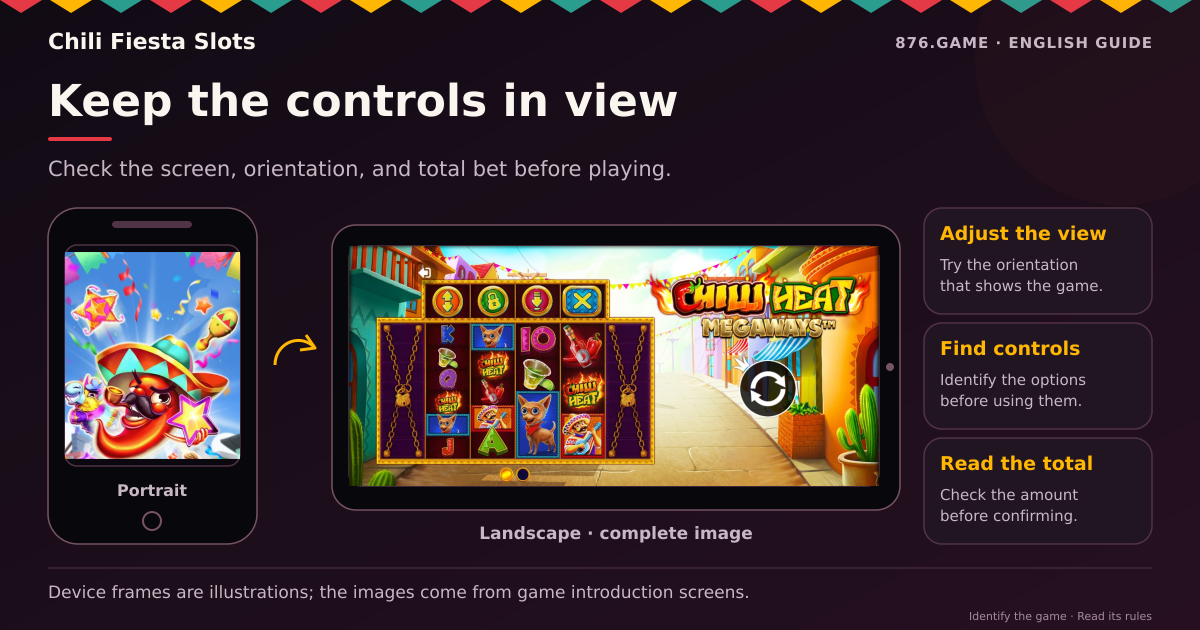
On a small screen, read three controls carefully: balance, total stake, and spin. Follow this route to identify the game, open its rules, and check that the full controls are visible before deciding whether to play.
Update your browser through the device's store or system settings. To compare opening screens and names, use the visual five-game catalog.
| Game | Phone check |
|---|---|
| Hot Chilli · Pragmatic Play | Confirm the Pragmatic Play logo rather than choosing by the Hot Chilli name alone. |
| Hot Chilli · JILI | Check the JILI branding and read this version's help before carrying rules over from another game. |
| Chilli Heat Megaways · Pragmatic Play | Check that the board and information above it are fully visible in your chosen orientation. |
| Boom Fiesta · JDB | Identify JDB and locate the rules menu as well as the stake control. |
| Fiesta Fortune · Pragmatic Play | Check the full title and total stake before beginning a new session. |
Board size and decoration do not establish RTP, payout frequency, or account conditions.
Check your connection and return to the lobby. If the problem repeats, note the title, browser, and error message for support. Do not install files from a third-party page to fix a failed load.
Stop tapping and check the history after reconnecting. If a spin result or cashier transaction is missing, ask support to clarify its status before repeating it.
Try the other orientation and close any keyboard or panel covering the screen. If you still cannot read the full cost, end the session until the display problem is resolved.
If your browser offers a home-screen shortcut, check the page you are saving first. A shortcut opens a web address; it does not establish that an official app has been installed or change the game rules. On a shared device, sign out and do not save your password.
To study the games without confusing account funds and practice credits, follow the demos and practice guide.
Start with the 876.GAME lobby in your browser. This guide describes that route and does not distribute an app or APK. If the platform proposes an installation, check its source and permissions before continuing.
Check the provider. One is by Pragmatic Play and the other is by JILI. Open the card or opening screen and read the studio name before using the stake controls.
Check your connection, close tabs you do not need, and return to the lobby. If you had already started a spin or transaction, check its status in the history or with support first. Do not repeat it while its status remains unclear.
Use the orientation that lets you read the balance, total stake, and help without confusing buttons. Before wagering, rotate the screen and check that those controls remain visible.